
Geiger Counter Pro
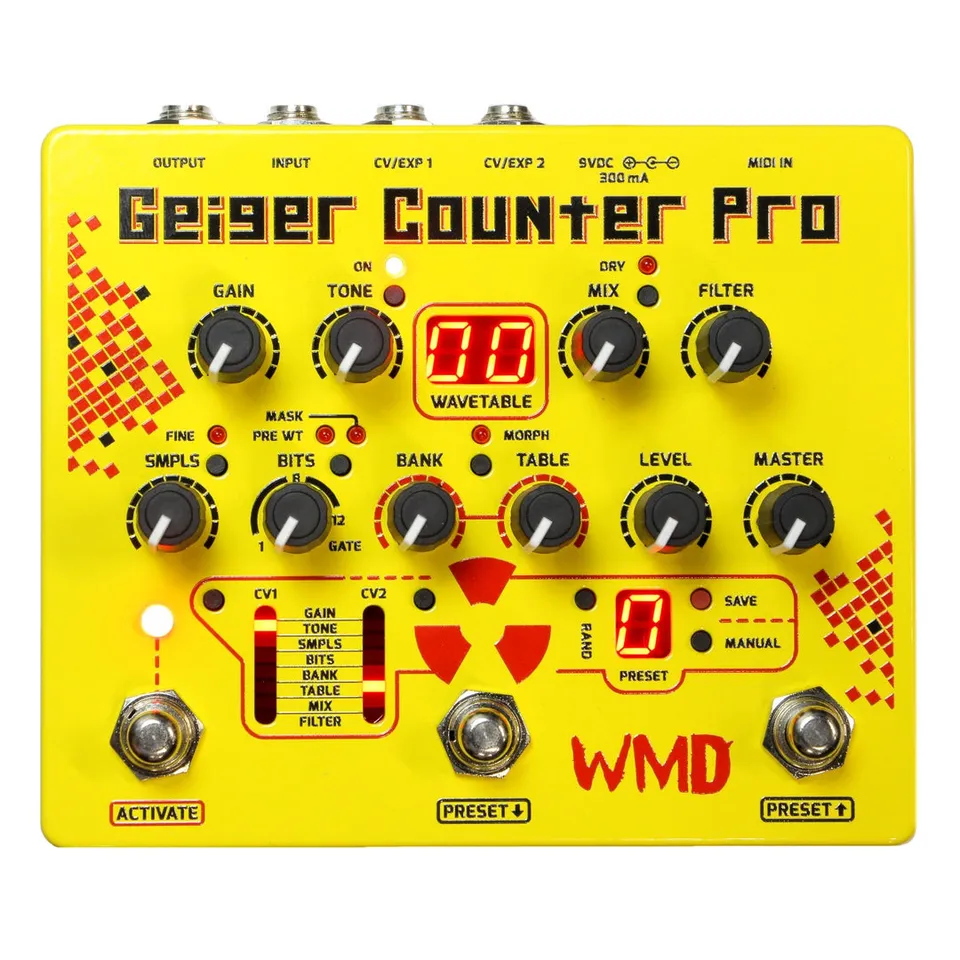
Waveshaping Distortion Workstation
1Introduction
The Geiger Counter Pro is the final evolution of my bit crusher concept. We added many features that were impossible before technology caught up. The Pro edition stays true to the original’s brutality, but refines the user experience, and extends its capabilities.
The GCP took six years to develop. In 2011 I designed it to have menus and a bunch of features hidden within, but it was clunky and unpleasant to operate. So it was shelved for a while, and in 2014 I started again from scratch. This time I brought every feature to the surface.
2024 Update - We went through hell making the first production of the GCP, lots of problems with the enclosures, and the board design wasn’t optimized for being produced, requiring a lot of manual rework. So I shelved the project and stopped making them. This year, after nuking WMD in 2022, re-releasing the GCP marks the return to roots of making impactful art through electronics for me personally.
Thank you for purchasing the Geiger Counter Pro. I hope that it inspires you to create music (and noise) that the world has never heard before.
— W. Mathewson
2Controls
2.1Gain
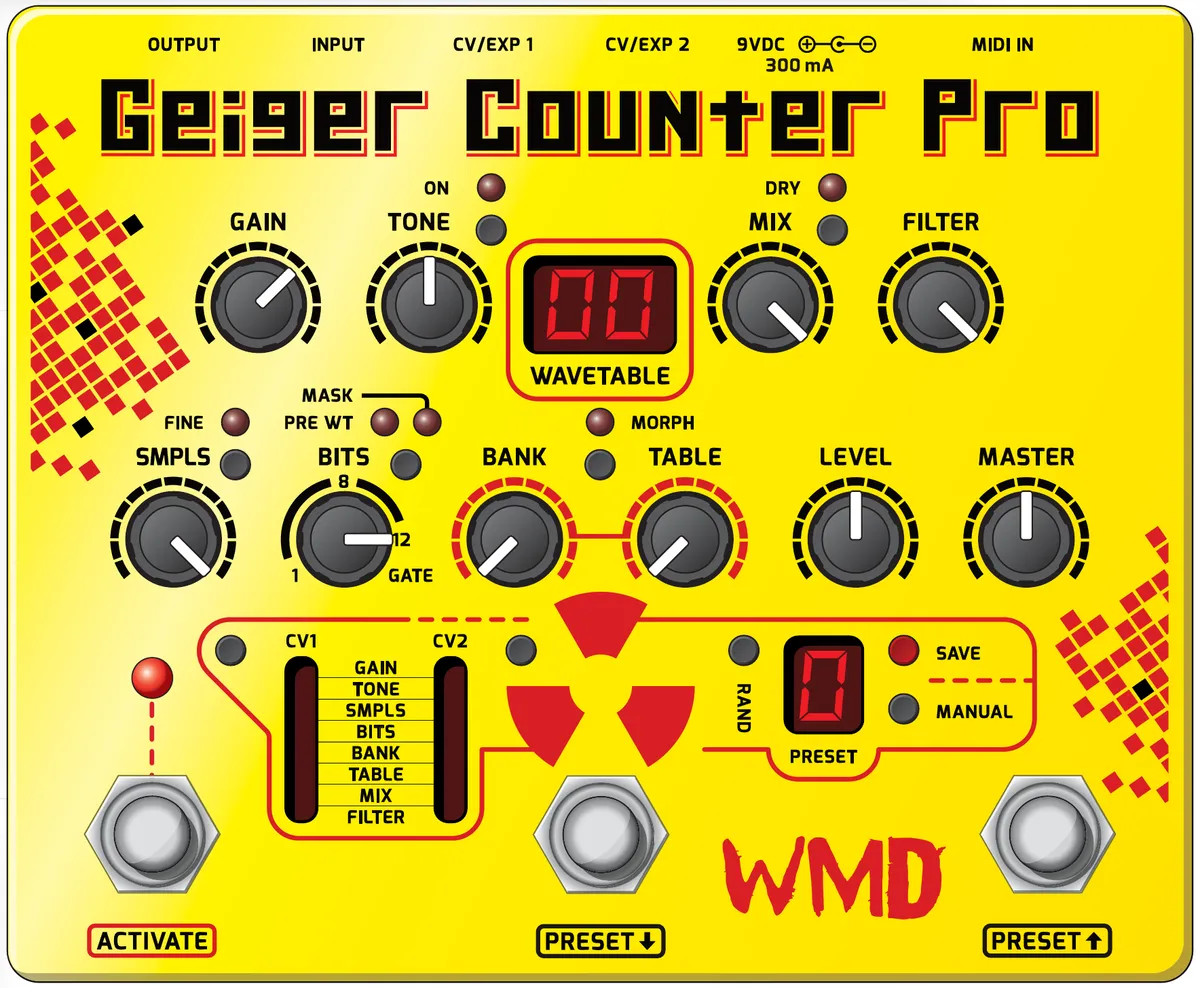
No knob on the Geiger Counter Pro is more magical than GAIN. Not only does it control the overall amount of distortion, it functions in tandem with the selected WAVETABLE to create a nearly infinite variety of timbres.
2.2Tone
Here we have the same flexible tone control as the classic Geiger Counter, which allows you to shape the wet signal’s equalization. The tone circuit can be bypassed with the ON button, so the decision to tame or release the GCP’s wildness is yours.
2.3Mix
The GCP features a newly designed MIX circuit that gives you the ability to blend your dry signal back in to the pedal’s output. When DRY mode is on, MIX blends between wet and dry; when DRY is off, the knob mixes between the analog gain circuit and the digitally processed signal.
2.4Filter
We love distortion, but sometimes it can get too hairy, even for us. So we gave the GCP an anti-aliasing low-pass FILTER that rolls off high frequencies. The circuit has a subtle resonance that gives its sweep an extremely musical character. Better yet, sweeping the FILTER with one of the CV/EXP inputs creates otherworldly wah and synth tones.
2.5Samples
This knob controls the sample rate of the GCP’s processor. Higher sample rates yield crystal clear tones or subtle robotic harmonics, while lower settings produce pseudo ring modulation and pure digital noise. The FINE button limits the range of the SAMPLES control for easier fine-tuning.
2.6Bits
The BITS control sets the bit depth of the processed signal, and also activates the GCP’s noise gate modes. We have increased the bit depth of the Geiger processor from 8 to 12 bits, allowing for a higher fidelity output. Reducing BITS creates square wave distortion tones. Increasing BITS to GATE engages a digital noise gate mode with adjustable threshold. When in PRE WT mode, bit reduction and gating occurs before WAVETABLE processing. MASK mode is a logical AND function of raw numbers disabling voltage possibilities.
2.7Wavetable
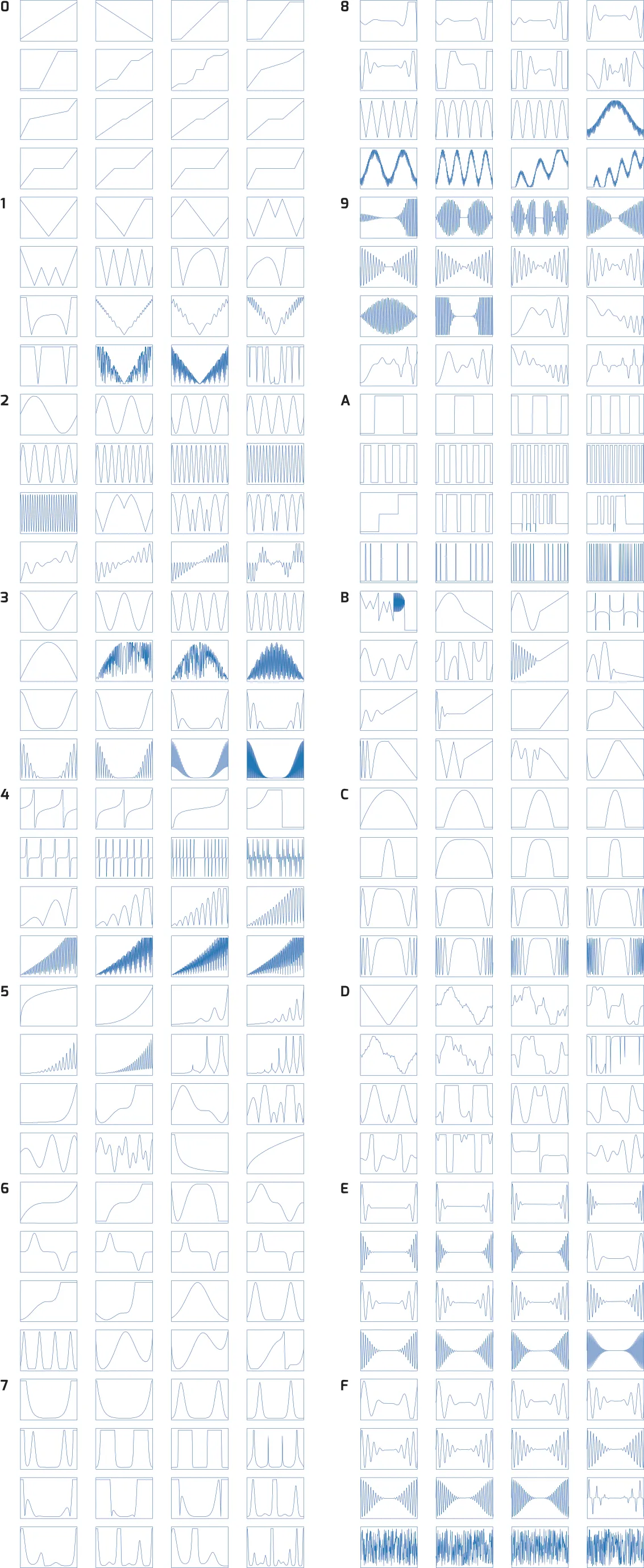
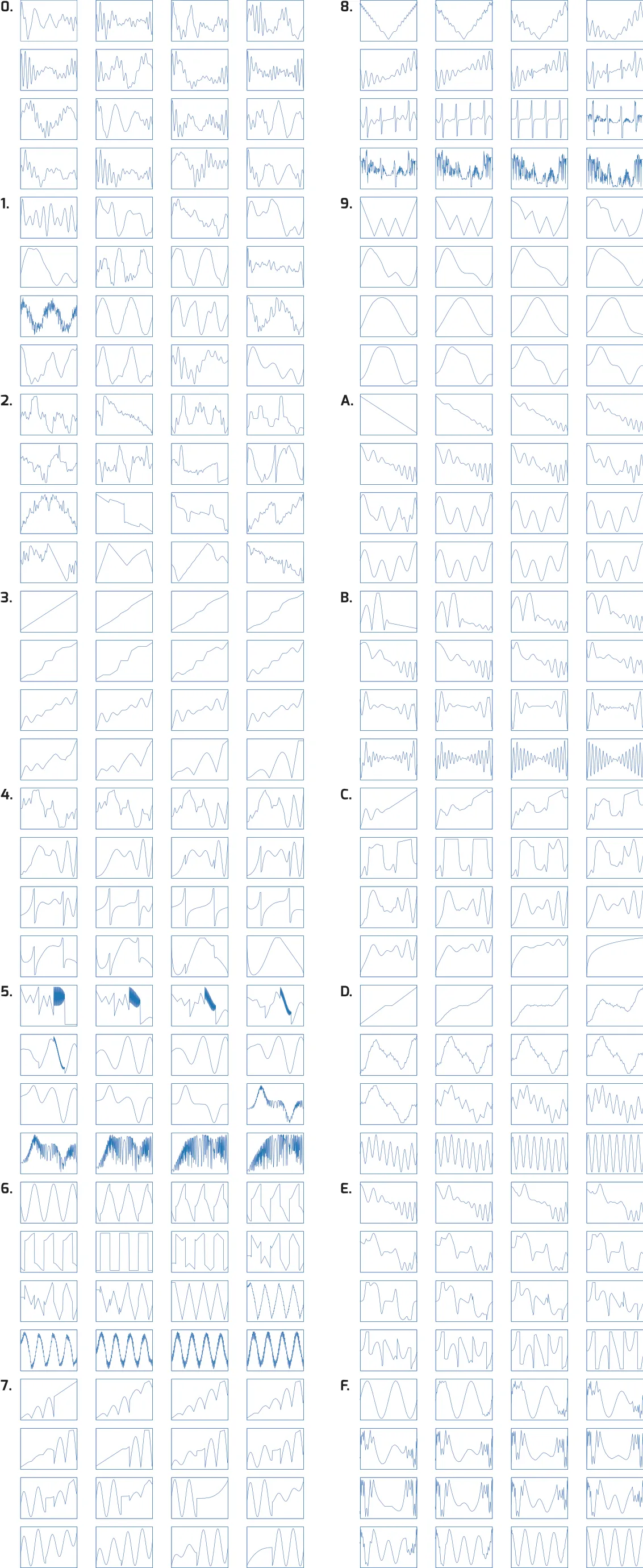
This section controls the shaping function for each preset. BANK selects one of the 32 banks, while TABLE selects one of the 16 wavetables in each bank. The first 256 wavetables are from the classic Geiger Counter, while the remaining 256 tables (signified by a dot on the screen) are newly designed for the GCP. MORPH activates 16 steps of blending between tables.
2.8Level
Controls the volume of the current preset.
2.9Master
Overall output volume, regardless of preset.
2.10Activate
The GCP uses a quiet electronic bypass relay that completely circumvents the circuit to maintain the fidelity of your dry tone.
2.11CV 1 and 2
One of the most prominent features of the GCP is its dual CV/EXP (control voltage and expression) matrix. Here you can route the two CV/EXP jacks to control GAIN, TONE, SAMPLES, BITS, BANK, TABLE, MIX, or FILTER. Now you can animate your sonic universe with expression pedals or your modular synth setup!
2.12Presets
The Geiger Pro features 16 fully programmable presets, the ability to make RANDOM patches, and a MANUAL override function. Capturing your patch is as easy as pressing SAVE, using the footswitches to find the right preset, and pressing SAVE again. Every parameter on the GCP can be saved into memory, except MASTER volume. Dedicated preset footswitches make recalling tones easy.
3Specs
Specs:
- Power: 9VDC Center Negative (BOSS Standard) - 180mA draw, 300mA peak input
- Input Impedance: 380k
- Output Impedance: 1k
- MIDI standard input. Channel 1.
- CV Inputs: 0-5V. 100k Impedance. TS connection
- Expression Inputs: 10k-100k linear. TRS connection - +5V on ring terminal. Tip is wiper of pot.
- Relay True Bypass
- Dimensions: 5.8" x 4.75" x 2.5"
4MIDI Implementation
Every feature is accessible via MIDI. Knobs are on their own CC, and settings can be changed by sending a specific value on CC #28. MIDI channel is set to channel 1.
4.1MIDI Parameters
The Geiger Counter Pro responds to Program Change 1-16.
| CC | Parameter |
|---|---|
| 7 | Level |
| 20 | Gain |
| 21 | Tone |
| 22 | Mix |
| 23 | Filter MSB |
| 55 | Filter LSB |
| 24 | Bit Depth MSB |
| 56 | Bit Depth LSB |
| 25 | Sample Rate MSB |
| 57 | Sample Rate LSB |
| 26 | Bank MSB |
| 27 | Table MSB |
| 59 | Table LSB |
| 28 | Settings |
Control change numbers for each Geiger Counter Pro parameter.
| Value | Setting |
|---|---|
| 01 | Bypass Effect |
| 02 | Enable Effect |
| 11 | Tone Off |
| 12 | Tone On |
| 17 | Dry On |
| 18 | Dry Off |
| 21 | Sample Rate Normal |
| 22 | Sample Rate Fine |
| 31 | Bit Depth Post Table |
| 32 | Bit Depth Pre Table |
| 33 | Bit Depth Mode (Mask Disable) |
| 34 | Bit Mask Mode (Mask Enable) |
| 35 | Full Bit Depth (12 bit w/ no Gate) |
| 41 | Morph Off |
| 42 | Morph On |
| 50 | Randomize |
| 60 | Save to Active Preset |
| 70 | CV1 Route to Nothing |
| 71 | CV1 Route to Gain |
| 72 | CV1 Route to Tone |
| 73 | CV1 Route to Samples |
| 74 | CV1 Route to Bits |
| 75 | CV1 Route to Bank |
| 76 | CV1 Route to Table |
| 77 | CV1 Route to Blend |
| 78 | CV1 Route to Filter |
| 80 | CV2 Route to Nothing |
| 81 | CV2 Route to Gain |
| 82 | CV2 Route to Tone |
| 83 | CV2 Route to Samples |
| 84 | CV2 Route to Bits |
| 85 | CV2 Route to Bank |
| 86 | CV2 Route to Table |
| 87 | CV2 Route to Blend |
| 88 | CV2 Route to Filter |
Values sent on CC 28 (Settings) and the setting each one changes.
5CV/EXP Take-Up
When CV or an expression pedal is routed to a parameter, the incoming control signal must pass the parameter’s saved position before becoming active. For instance, if the FILTER was set to 100% on the current preset, an expression pedal would have no effect until it reached its maximum position, and then it would take full control over the parameter.
6Power Supply
The Geiger Counter Pro has several protection features to prevent against improper power. There is also a soft start circuit built in, so it will take up to 15 seconds to fully start. This is to prevent it browning out any of the newer fully isolated power supplies on the market. R7 has been tested fully with Strymon power supplies.
7Factory Reset
Restoring the Geiger Pro to its factory settings is easy! To restore the Geiger Counter Pro’s original settings and presets, simply hold down the TONE ON button and the MIX DRY button while powering the unit. If the original presets have successfully been restored, the WAVETABLE display will read Fr.
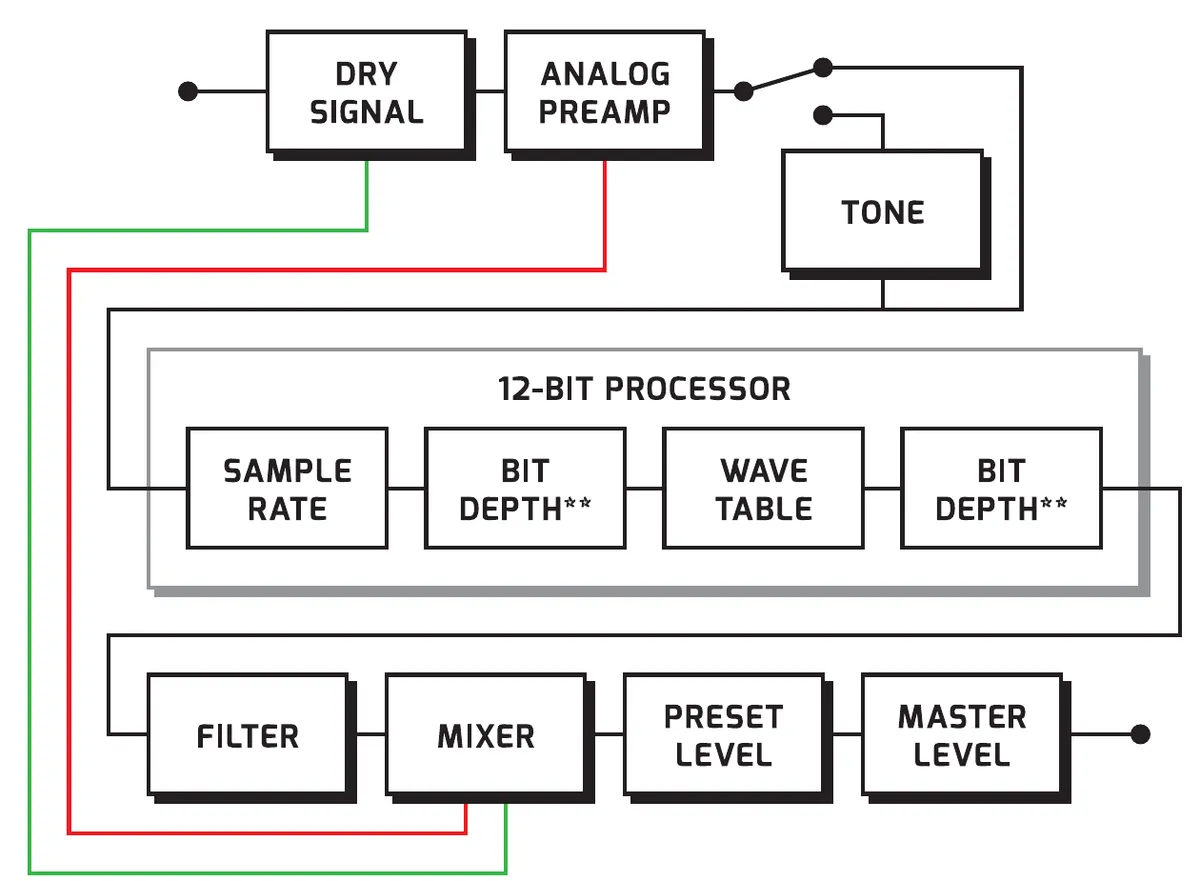
8Signal Path
9Geiger Counter Pro VST

9.1What Is It?
In addition to the Geiger Counter Pro’s CV, expression, and MIDI implementation, we have developed a VST plugin for DAW integration and preset management. The GCPVST gives you access to all of the parameters on the GCP, except for MASTER volume control, PRESET selection, and the MANUAL toggle switch. To install the GCPVST, simply visit WMDEVICES.COM and download the VST file. Next, place the VST file into your computer’s VST plugin folder. Open your favorite DAW, select Geiger Counter Pro from its VST menu, and enjoy!
9.2Synchronizing the Geiger
The GCPVST sends MIDI data to the GCP, but cannot receive MIDI back. So when you alter a parameter on the GCP unit, you will not see visual feedback on the VST. Clicking SYNC on the GCPVST will transmit all the values displayed on the VST to the GCP unit. Checking the box within the SYNC button allows the GCPVST to update the Geiger Pro’s settings automatically when any parameter is changed on the VST. Leaving the SYNC box checked is more convenient, but does take up more MIDI bandwidth. The CH menu allows you to select the MIDI channel on which to send data to the Geiger Pro. The Geiger Pro receives MIDI information on channel 1 by default, but this can be changed (see MIDI Implementation).
9.3Saving
The SAVE button on the VST saves the parameters on the plugin to a preset on the GCP. To save, simply click the SAVE button; next, select the program that you would like to write to from the dialogue box. Finally, click SAVE to send the data to the Geiger Pro, or CANCEL to exit.
10Factory Presets
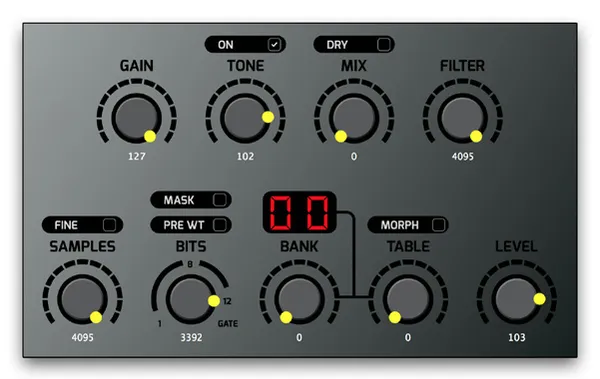
Preset 0 
Preset 1 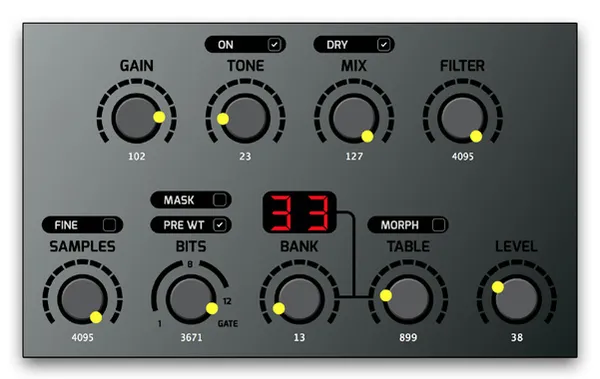
Preset 2 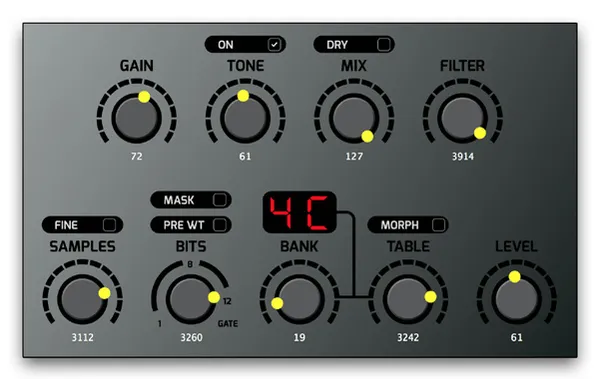
Preset 3 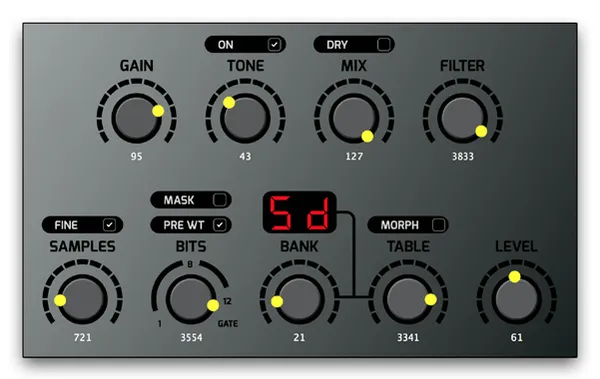
Preset 4 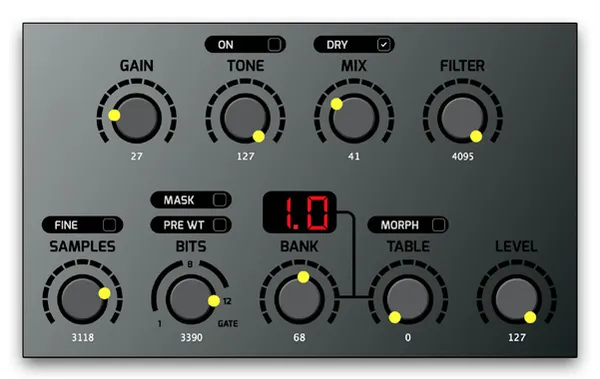
Preset 5 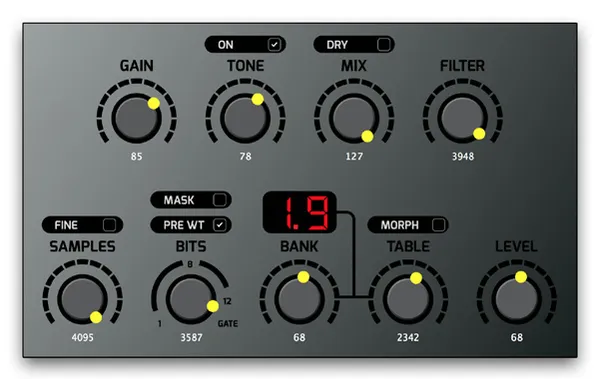
Preset 6 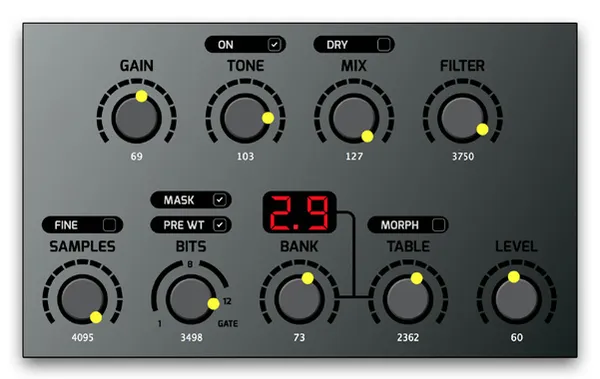
Preset 7 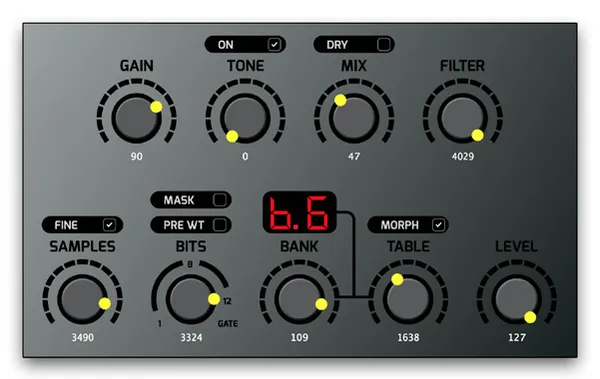
Preset 8 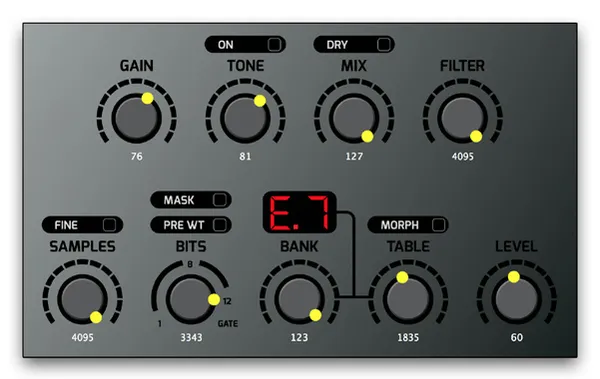
Preset 9 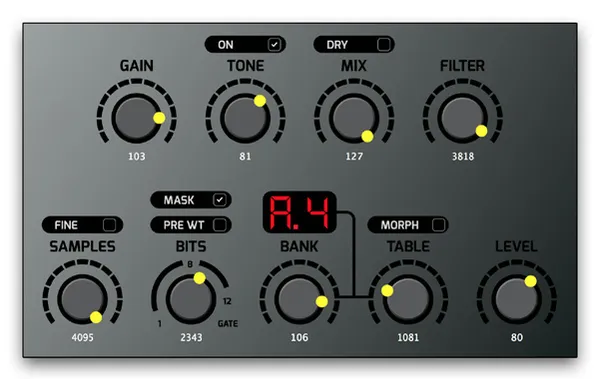
Preset A 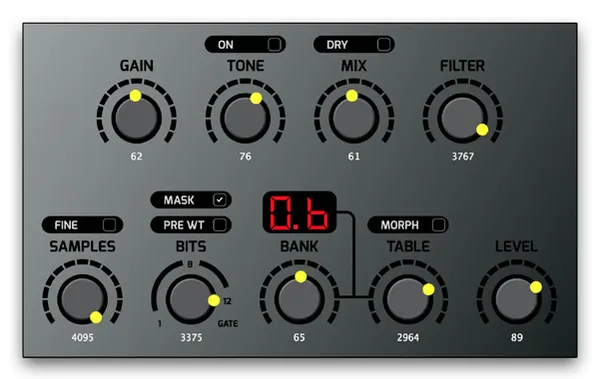
Preset B 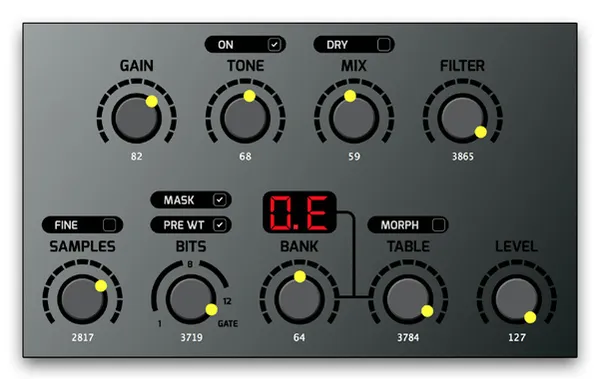
Preset C 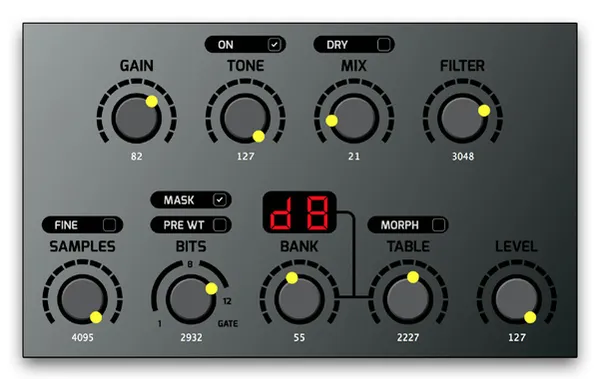
Preset D 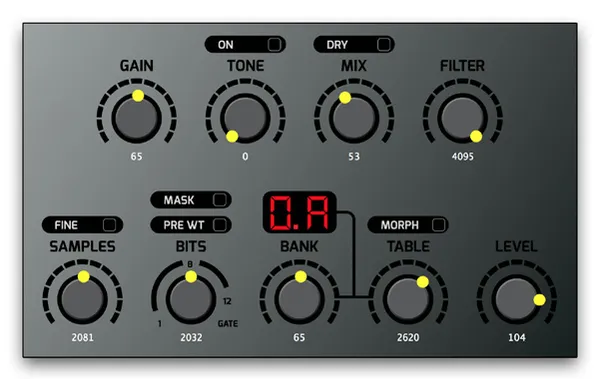
Preset E 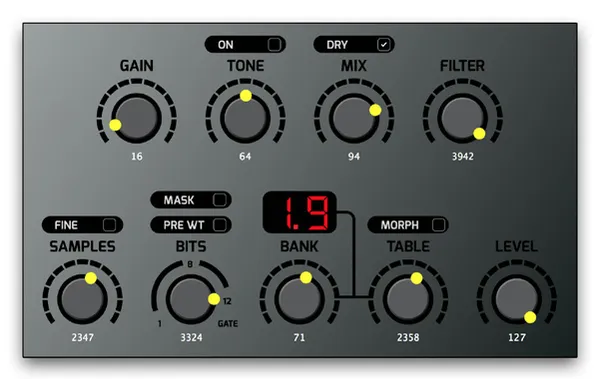
Preset F
11Wavetable Banks
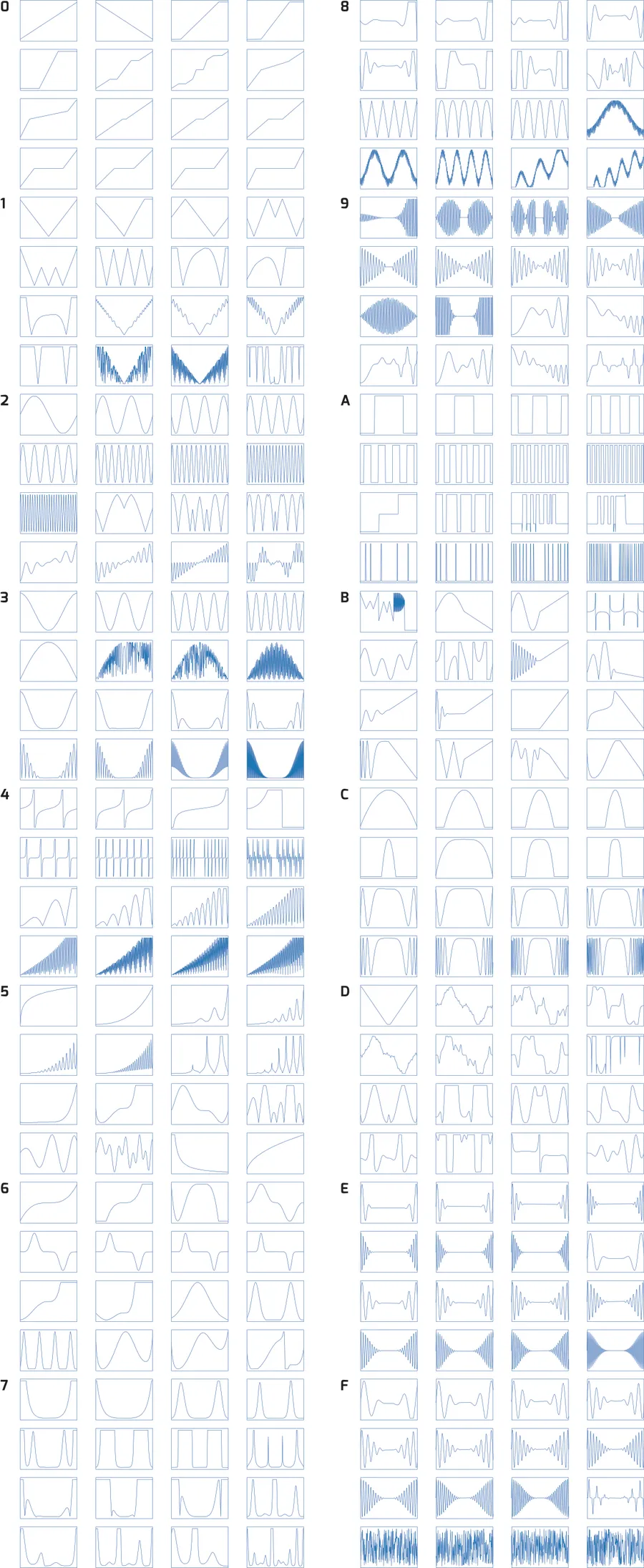 (opens full-size image in a new window)
Banks 0 to F. 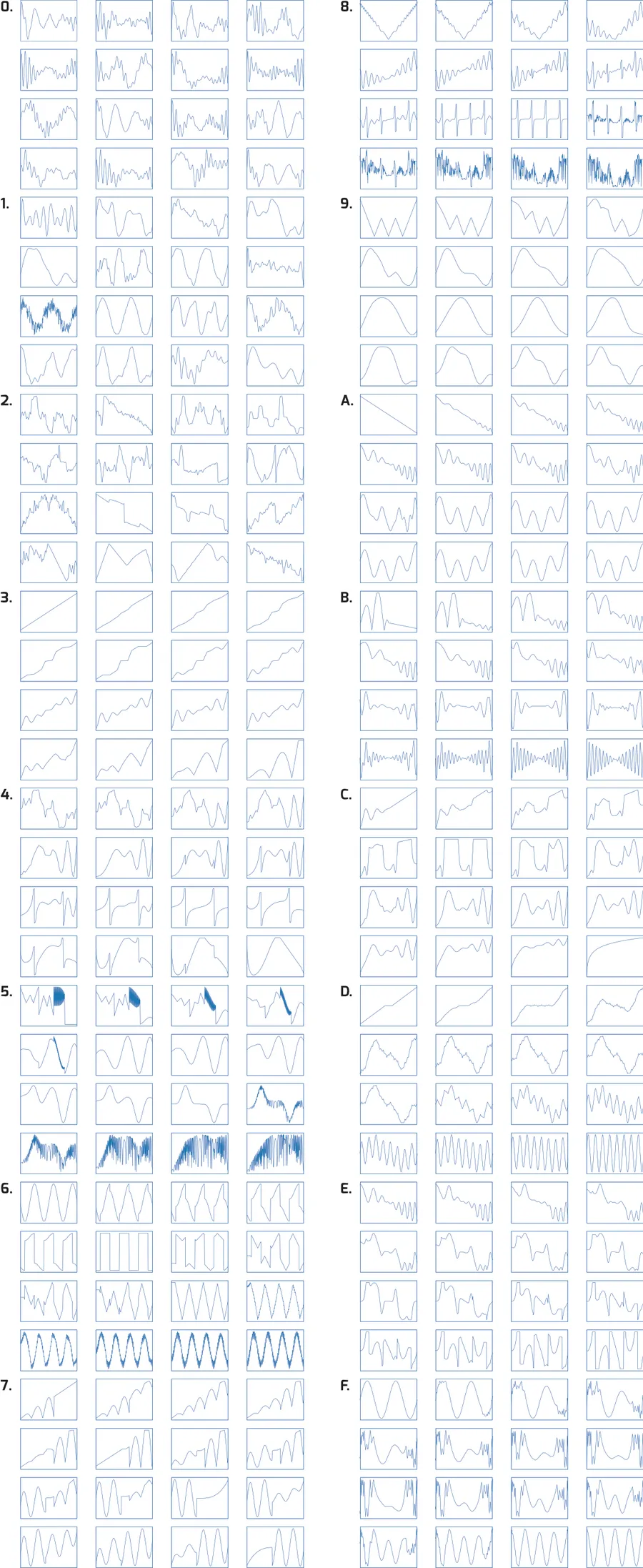 (opens full-size image in a new window)
Banks 0. to F.
12Support
WMD is located in Denver, CO. Reach us by email at info@wmdevices.com. For more on the Geiger Counter Pro, including video demos, visit the product page.